How AI Can Assist with Physical Meeting Minutes
Most AI meeting tools were built for a video call, where every participant already has a microphone and a screen. A physical meeting has one device, several metres of table, and no interface for the people sitting around it.
This guide covers what changes in that setting: which features from Google and Microsoft actually reach a room, where the device goes, who starts capture, how the room gets told, and what the review step has to catch. Everything below is checked against the vendors' own current documentation and NIST's AI Risk Management Framework, read on 1 September 2026.
Why a room is harder than a call
On a video call, each person's voice arrives on its own channel from a microphone about forty centimetres from their mouth. The platform knows who is speaking because it knows which stream carried the audio.
In a room, one microphone hears everyone at different distances, plus the air conditioning, the corridor, the chairs and the two people who start talking at once. Speaker separation gets harder, quiet participants get lost, and the platform has no account identity to attach a name to.
Nothing about that is unfixable, but it changes where the effort goes. On a call, the work is configuration. In a room, the work is placement, announcement and review — three things a person does, not a setting anyone can toggle.
What the online tools do and do not reach
Read the vendors' scope carefully before assuming your existing licence covers the boardroom.
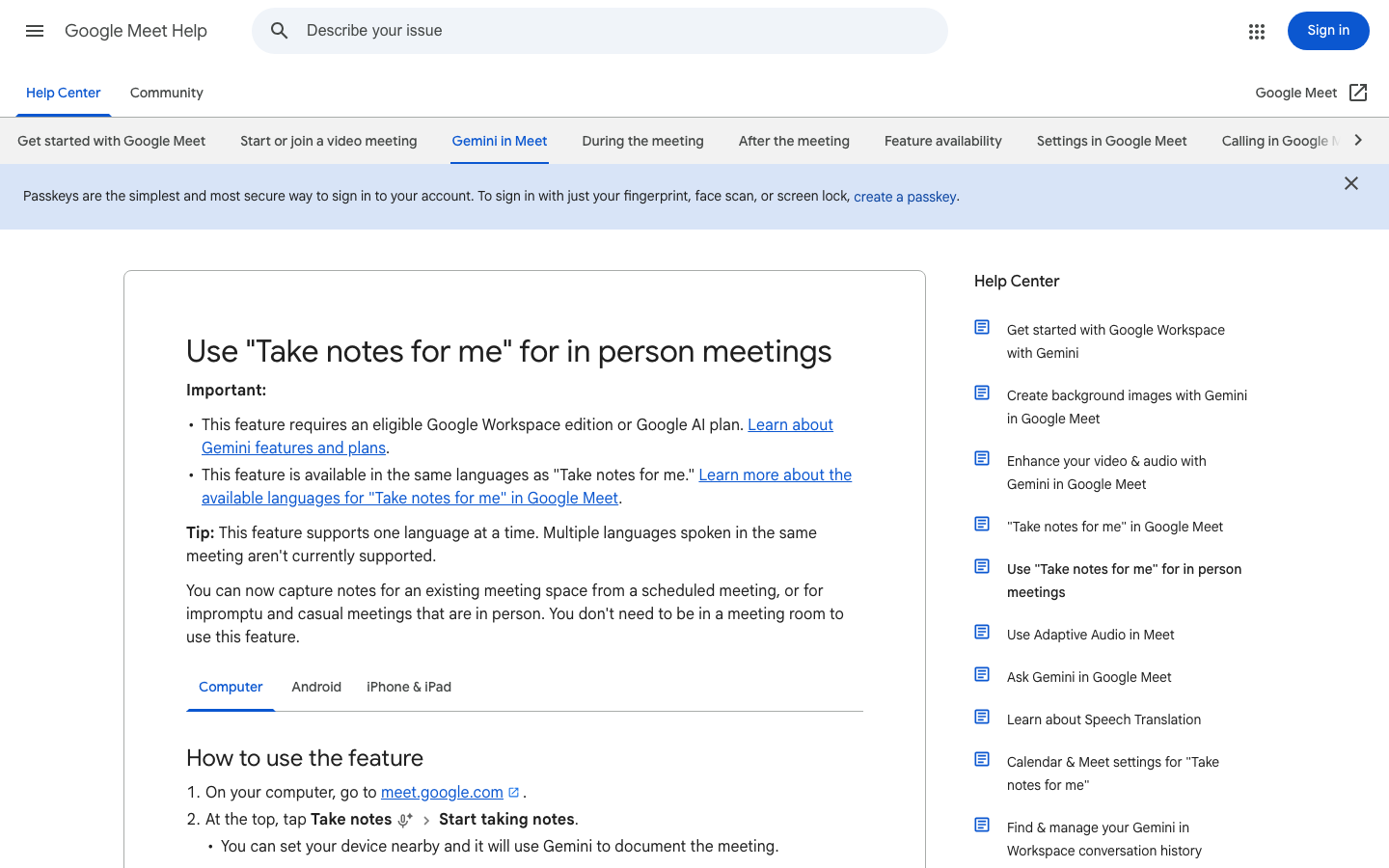
Google does support this case explicitly. Its help page for "Take notes for me" for in person meetings says you can capture notes for an existing meeting space from a scheduled meeting, or for impromptu and casual meetings that are in person, and that you do not need to be in a meeting room to use it. The flow is to open meet.google.com, tap Take notes, then Start taking notes, and set your device nearby so Gemini documents the meeting; Pause and Stop are available while it runs. Notes arrive by email and in the Drive folder of whoever turned the feature on. The limits carry over from the online version: an eligible Google Workspace edition or Google AI plan, the same supported languages, one language at a time, and a summary that Google says can be incomplete, inaccurate or not generated. Google also notes that if someone who is not in the room wants to join, you transition to a normal video call.
Microsoft's transcription and captions documentation is scoped to Teams meetings and events. Transcription is a per-organiser and per-user policy, and transcripts are stored alongside the meeting recording in OneDrive and SharePoint — all of which presupposes a Teams meeting exists. Microsoft separately states that Copilot will not work in meetings hosted outside the participant's organisation, which rules out the common in-room case of a client or partner session on someone else's tenant.
The honest summary: Google has a documented in-person path with plan and language conditions; the Teams path assumes a Teams meeting. Anything else in the room needs a device that records locally.
Where the device goes, and who starts capture
Placement is the highest-leverage decision in the whole workflow, and it costs nothing.
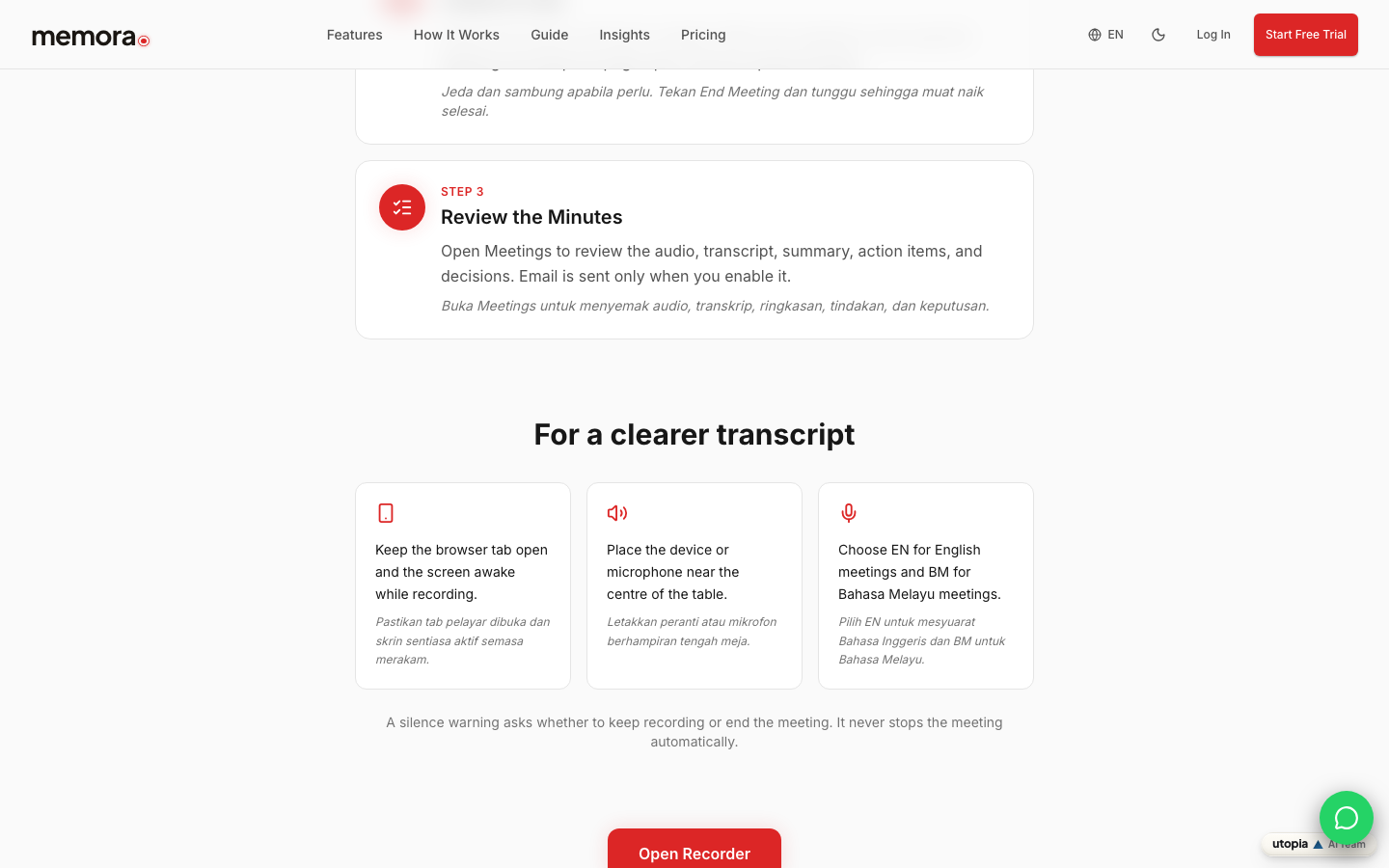
Memora's public staff guide gives three instructions for a clearer transcript: place the device or microphone near the centre of the table, keep the browser tab open and the screen awake while recording, and choose EN for English meetings or BM for Bahasa Melayu meetings. Google's in-person page gives the equivalent instruction in one line — set your device nearby.
Assign the device to a person, not to the room. Whoever owns capture that day does four things: puts the device down before people sit, starts capture, watches that it is still running after any break, and ends it deliberately. Memora's guide notes that pause and resume are available whenever needed, that you tap End Meeting when the meeting is over and keep the page open until the upload finishes, and that a silence warning asks whether to keep recording or end the meeting — it never stops the meeting automatically. Google's in-person flow similarly offers Pause and Stop, with a confirmation before stopping.
One practical rule that prevents most lost recordings: upload completion is not the end of the meeting for the person holding the device. Wait for it.
Telling the room that capture is on
On a call, the platform can tell everyone. Google's Meet documentation describes exactly that: Google Meet informs all meeting participants that notes are being taken, a pencil icon appears on participants' screens, and an administrator may require all participants to give explicit consent before features like "Take notes for me", Record or Transcribe start — a setting Google says is off by default and can be turned on.
That mechanism lives in the meeting interface. The people sitting around a table are not in that interface, so in a room the announcement is a human step. Say it out loud before you start, say what is being captured, and say who will receive the output. If someone objects, that is information you needed before the meeting rather than after it.
Where your organisation runs a formal policy on recording, apply it here the same way you would on a call. This is an operational courtesy and a governance habit, not a legal opinion — check your own organisation's policy for the rules that bind you.
Reviewing a room recording before it becomes the minute
Room audio produces a different failure profile from call audio, so review it for different things. Overlapping speech tends to merge, quiet speakers at the far end of the table get thinner coverage, and speaker labels have no account identity behind them — so names are the field to check first, not last.
Work through six items against the recording rather than from memory: names, figures, dates, decisions, action owners and deadlines. Memora's guide puts this review after the upload finishes: open Meetings and check the audio, transcript, summary, action items and decisions.
Google's own caveat applies in the room as much as on a call — a summary can be incomplete, inaccurate or not generated, and Google adds that the recommended meeting length for a usable summary is at least fifteen minutes.
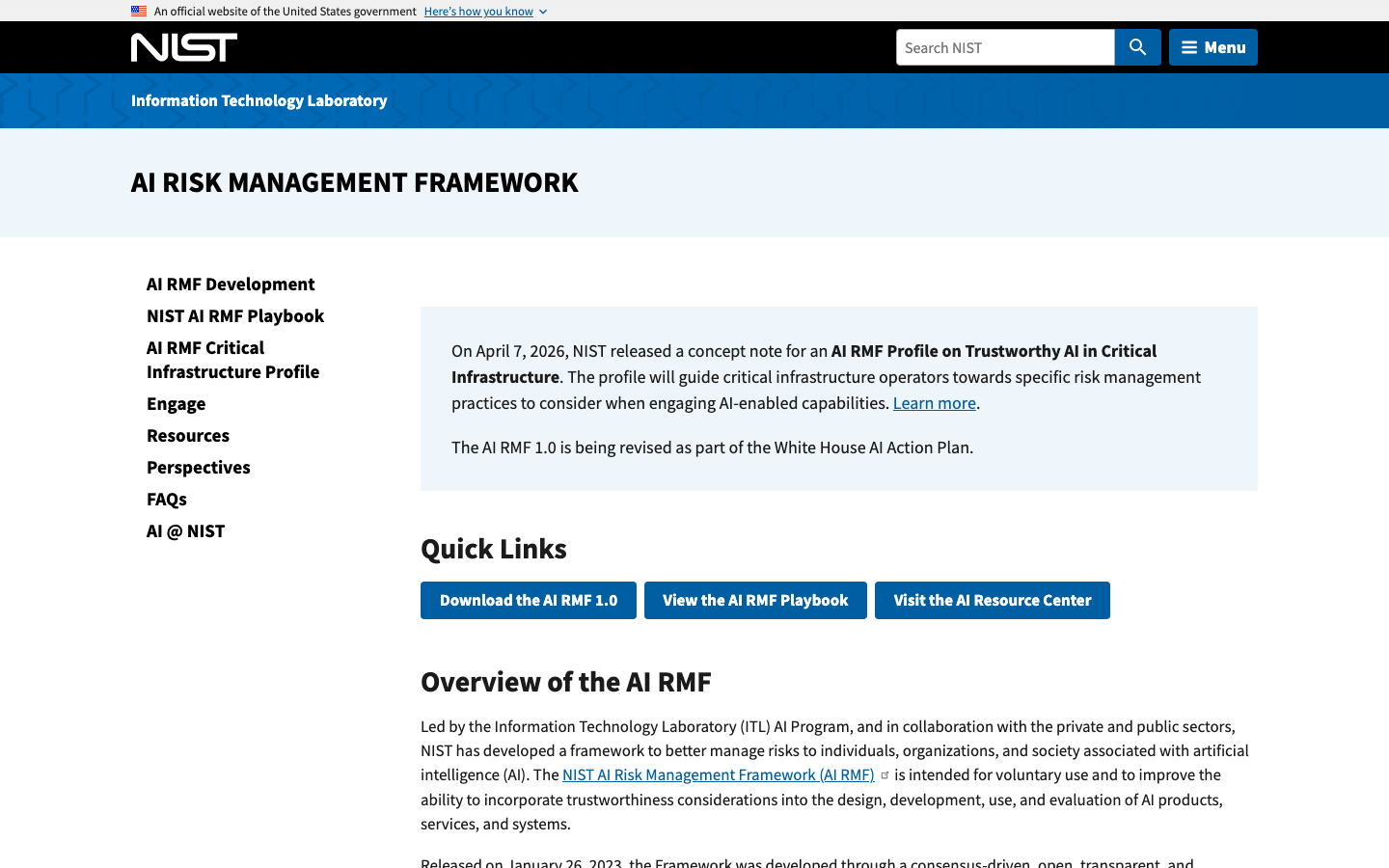
The review step is not administrative overhead. NIST's AI Risk Management Framework is described by NIST as a voluntary framework intended to improve the ability to incorporate trustworthiness considerations into the design, development, use and evaluation of AI products, services and systems. Evaluation of the output is part of using the system, not a separate favour to the compliance team.
We do not publish an accuracy figure for Memora in physical rooms, and no first-party measurement exists to quote. Run your own room, with your own accents and your own table, and judge the transcript yourself.
A repeatable in-room routine
Six steps, the same every time, and it takes about ninety seconds of extra effort per meeting.
- Before. Name the person who owns capture. Confirm the device is charged and the language setting matches the meeting.
- On arrival. Put the device near the centre of the table, before people sit down around it.
- Announce. Say that capture is running, what is being captured, and who will receive the output.
- Start, then check. Start capture, and glance at it once after the first break to confirm it is still running.
- End deliberately. End the meeting in the app and wait for the upload to complete before closing anything.
- Review and approve. One named person checks names, figures, dates, decisions, owners and deadlines against the recording, then approves and distributes.
For the template that the reviewed output goes into, see AI Meeting Minutes Template: A Practical Format for Clear Notes. For the wider picture of what can be automated across platforms, see How AI Can Automate Your Meeting Minutes.
Room capture: what each official source actually covers
| Source | What it says about meetings held in a room | What it leaves to you |
|---|---|---|
| Google Meet Help — in person notes | Supports notes for impromptu and in-person meetings; open meet.google.com, tap Take notes, set the device nearby; Pause and Stop available; notes emailed and saved to the Drive of whoever turned it on | An eligible Workspace edition or Google AI plan, one supported language at a time, and a meeting of at least fifteen minutes for a usable summary |
| Google Meet Help — Take notes for me | Participants are informed in the meeting interface and a pencil icon appears on their screens; admins can require explicit consent | The people in the room are not in that interface, so the announcement is a human step |
| Microsoft Learn — Teams transcription and captions | Scoped to Teams meetings and events; transcription is a per-organiser and per-user policy and transcripts are stored with the recording in OneDrive and SharePoint | A room conversation with no Teams meeting produces no transcript through this path |
| Microsoft Support — Copilot in Teams | Copilot will not work in meetings hosted outside the participant's organisation | Client and partner sessions on another tenant need a separate, agreed capture method |
| Memora staff guide (our own product) | Browser recording with pause and resume; place the device or microphone near the centre of the table; keep the tab open and screen awake; choose EN or BM; a silence warning never ends the meeting by itself | Device ownership, the announcement, waiting for upload to finish, and the review before distribution |
| NIST AI Risk Management Framework | A voluntary framework for incorporating trustworthiness into the design, development, use and evaluation of AI systems | Treating evaluation of the generated output as part of normal use, not an optional extra |
In-room capture checklist
- One named person owns the device and the capture for this meeting
- Device charged, and the language setting matches the language the meeting will actually use
- Device or microphone placed near the centre of the table before people sit down
- Capture announced out loud: what is being captured and who receives it
- Capture confirmed to still be running after the first break
- Meeting ended in the app, with the page kept open until upload completes
- Speaker names checked first — there is no account identity behind them in a room
- Names, figures, dates, decisions, owners and deadlines checked against the recording
- Recipient list confirmed before distribution
- Meetings that must not be captured written down in advance
FAQ
Can Microsoft Teams or Google Meet take minutes for a meeting held in a room?
Google documents an in-person path: its help page states that "Take notes for me" can capture notes for impromptu and casual in-person meetings and that you do not need to be in a meeting room, with the device set nearby. Microsoft's transcription and captions documentation is scoped to Teams meetings and events, and Microsoft separately states that Copilot will not work in meetings hosted outside the participant's organisation — so a room conversation with no Teams meeting, or a session on another company's tenant, is not covered by that path.
Where should the device sit during a physical meeting?
Near the centre of the table. Memora's staff guide gives that instruction directly, along with keeping the browser tab open and the screen awake while recording, and Google's in-person notes page says to set your device nearby so it can document the meeting. Placement is the cheapest improvement available in the whole workflow.
How do people in the room know that AI note-taking is running?
Someone has to tell them. Google's documented notice mechanism — informing participants and showing a pencil icon on their screens, with an optional administrator setting requiring explicit consent — lives in the Meet interface, and the people sitting around a table are not in that interface. Announce it out loud before you start, say what is being captured and who will receive it, and follow your own organisation's policy on recording.
How accurate is AI transcription in a physical room?
We do not publish an accuracy figure for physical rooms, and there is no first-party measurement to quote — accents, table size, background noise and overlapping speech vary too much between rooms for a single number to mean anything. What the vendors do publish is the caveat: Google states a summary can be incomplete, inaccurate or not generated, and recommends meetings of at least fifteen minutes. Test one real meeting in your own room and judge the transcript yourself before relying on it.
Key takeaways
- A room has one microphone and no account identities, so placement, announcement and review carry the workload.
- Google documents an explicit in-person notes path, with plan, language and meeting-length conditions.
- Microsoft's transcription path is scoped to Teams meetings and events, and Copilot does not work on another organisation's tenant.
- Put the device near the centre of the table, and wait for the upload to finish before closing anything.
- The platform's participant notice lives in the meeting interface, so in a room telling people is a human step.
- Check speaker names first, then figures, dates, decisions, owners and deadlines, against the recording.
Sources and image provenance
- How to Use Memora — Memora. Checked 1 September 2026 (HTTP 200). Primary source.Evidence used: Memora's public staff guide instructs users to place the device or microphone near the centre of the table, keep the browser tab open and the screen awake, choose EN or BM, pause and resume as needed, keep the page open until upload finishes, and states that the silence warning never ends the meeting automatically.
- Use "Take notes for me" for in person meetings — Google Meet Help. Checked 1 September 2026 (HTTP 200). Primary source.Evidence used: Google documents in-person and impromptu note capture without needing a meeting room, the eligible-edition requirement, the same language set with one language at a time, the set-the-device-nearby instruction, Pause and Stop controls, delivery by email and to the Drive of whoever turned the feature on, and the transition to a video call if a remote participant joins.
- "Take notes for me" in Google Meet — Google Meet Help. Checked 1 September 2026 (HTTP 200). Primary source.Evidence used: Google states that Meet informs all participants that notes are being taken with a pencil icon on participants' screens, that an administrator may require explicit consent for note-taking, recording and transcription, that the feature is recommended for meetings of at least fifteen minutes, and that a summary can be incomplete, inaccurate or not generated.
- Admins - Manage transcription and captions for Teams meetings — Microsoft Learn. Checked 1 September 2026 (HTTP 200). Primary source.Evidence used: Microsoft's transcription and captions guidance applies to Teams meetings and events, describes transcription as a per-organiser and per-user policy, and states that transcripts are stored together with meeting recordings in OneDrive and SharePoint.
- Catch up on meetings with Microsoft Copilot in Teams — Microsoft Support. Checked 1 September 2026 (HTTP 200). Primary source.Evidence used: Microsoft states that Copilot will not work in meetings hosted outside the participant's organisation.
- AI Risk Management Framework — US National Institute of Standards and Technology. Checked 1 September 2026 (HTTP 200). Primary source.Evidence used: NIST describes the AI RMF as intended for voluntary use and to improve the ability to incorporate trustworthiness considerations into the design, development, use and evaluation of AI products, services and systems.
Image provenance
- First-party product-page screenshot: Memora — captured 1 September 2026 via Playwright browser screenshot of the resolved source URL at 1440x900, scrolled to the tips section. First-party screenshot of Memora's own public staff guide. Depicted content: Memora / Utopia Ventures. Review: Machine-verified in browser on 1 September 2026; own-product page. SHA-256:
81f252eddbdc788677c58d964fd624a8aad25a62974843b15bed3febb01aa127 - Editorial screenshot: Google Meet Help — captured 1 September 2026 via Playwright browser screenshot of the resolved source URL at 1440x900. Limited editorial screenshot of an official public help page for source identification and commentary. Depicted content: Google LLC. Review: Machine-verified in browser on 1 September 2026; no content owned by Memora or Utopia is depicted. SHA-256:
5aced130d3b40b4e68c4a533975dd4ac0c1543d62526c59639b2a0ce0736c0d8 - Editorial screenshot: US National Institute of Standards and Technology — captured 1 September 2026 via Playwright browser screenshot of the resolved source URL at 1440x900. Limited editorial screenshot of an official public US government page for source identification and commentary. Depicted content: US National Institute of Standards and Technology. Review: Machine-verified in browser on 1 September 2026; no content owned by Memora or Utopia is depicted. SHA-256:
eee870db686f40abecee3b513e25152cb0282ef6ea65ec0c965786850c2756f4