AI Meeting Minutes Template: A Practical Format for Clear Notes
Most meeting-minute templates were designed for someone typing during the meeting. If an AI tool is drafting first, the useful template is different: it separates the fields a generated draft can populate from the fields a person still has to decide.
The format below is built from what Memora, Google Meet and Microsoft Teams actually produce, checked on 1 September 2026, plus the one thing a minute has to do that no tool can do for you — be approved by someone.
What a minute has to do that a summary does not
A summary describes a meeting. A minute is the record of it — the version people rely on months later when they disagree about what was agreed.
Company law in many jurisdictions puts a floor under that. The UK Companies Act 2006, section 248, requires every company to cause minutes of all proceedings at meetings of its directors to be recorded, and to keep those records for at least ten years from the date of the meeting. That is a UK provision quoted here as a concrete illustration of the standard, not as advice about your own entity — check the rule that applies where your company is incorporated.
The practical consequence is the same everywhere: a minute needs to be attributable, complete on decisions, and stable once approved. That is what the template below is shaped around, and it is why the approval field is not optional decoration.
Sources: [5]
The template, field by field
Copy this structure. It fits a one-page document and it survives being pasted into email, a Doc or a wiki.
1. Meeting identity — title, date, start and end time, location or platform, and who chaired.
2. Attendance — present, apologies, and anyone who joined partway. Note the point they joined if a decision happened before it.
3. Agenda item — one heading per item. Everything below repeats under each heading.
4. Discussion summary — three to six lines. What was raised, the main positions, and any figure or date that was quoted. Not a transcript.
5. Decisions — written as a completed statement: "Approved the revised delivery date of 14 October." If nothing was decided, write "No decision; carried to next meeting."
6. Action items — one line each, with a named owner and a due date. "Team" is not an owner.
7. Follow-ups and open questions — things nobody could answer in the room, with who will find out.
8. Approval — who prepared the minute, who checked it against the recording or transcript, and the date it was approved.
Field 8 is the one people delete first and miss most. It is what separates a draft that circulated from a record that was accepted.
Which fields the AI fills, and which stay with you
The tools are good at the middle of the template and weak at both ends, and their own documentation says so.
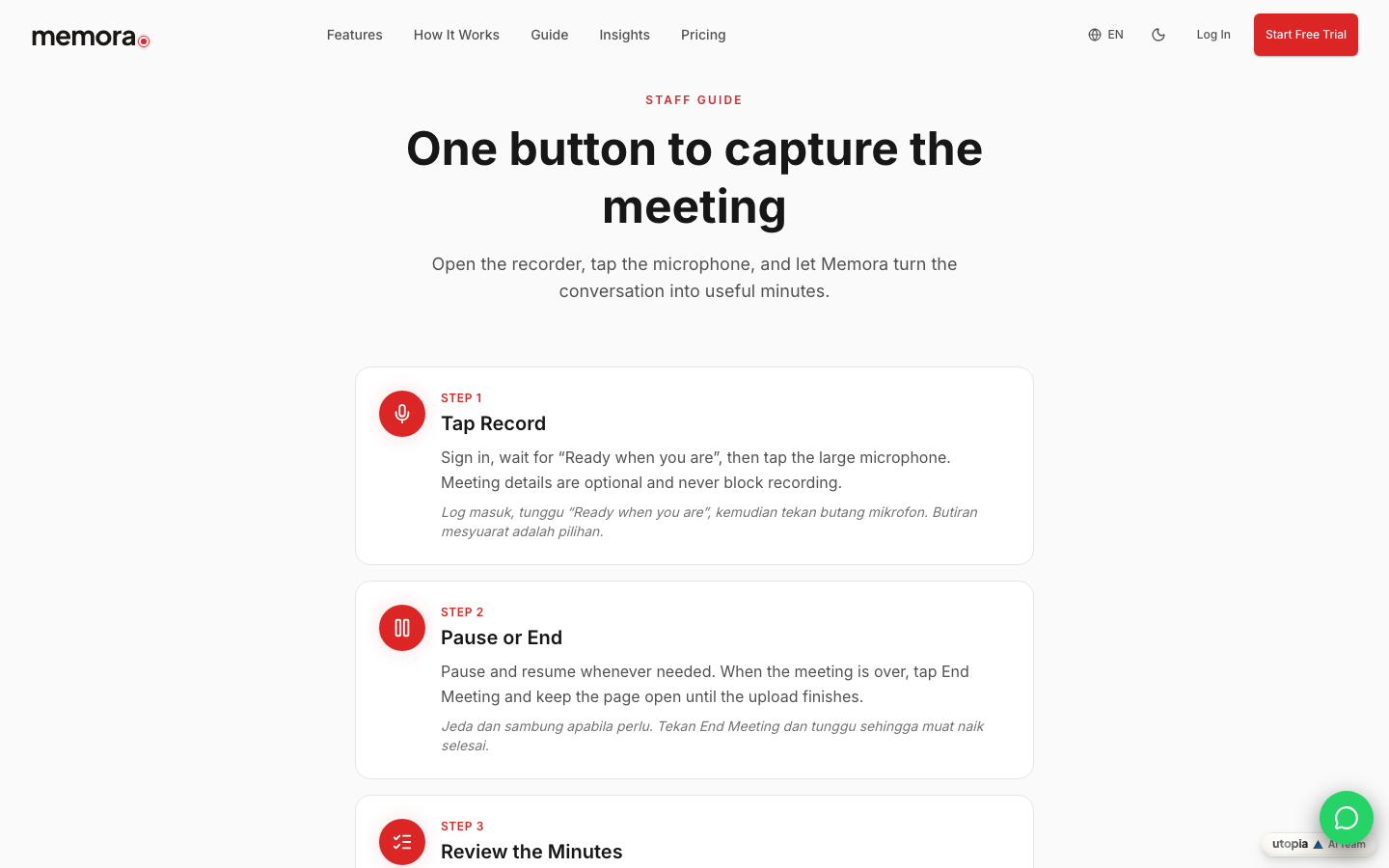
Memora's staff guide describes the review screen as holding the audio, transcript, summary, action items and decisions — fields 4, 5 and 6 — and puts the review step after upload completes, not before.
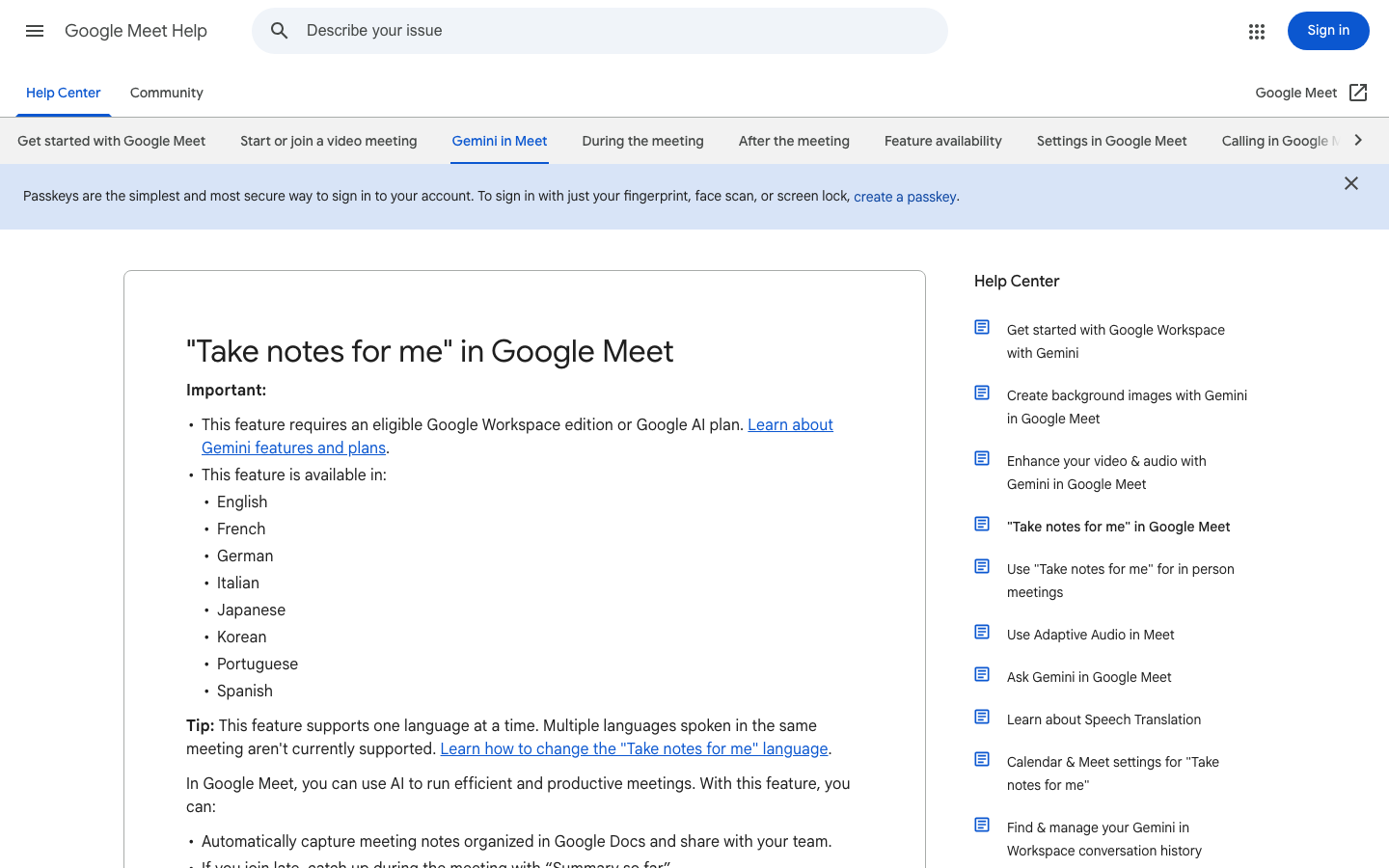
Google's Meet help page says "Take notes for me" automatically captures notes organised in Google Docs, gives late joiners a "Summary so far", and sends the organiser an email containing a link to the notes document, a meeting summary and suggested next steps. It also states that the summary can be incomplete, inaccurate or not generated.
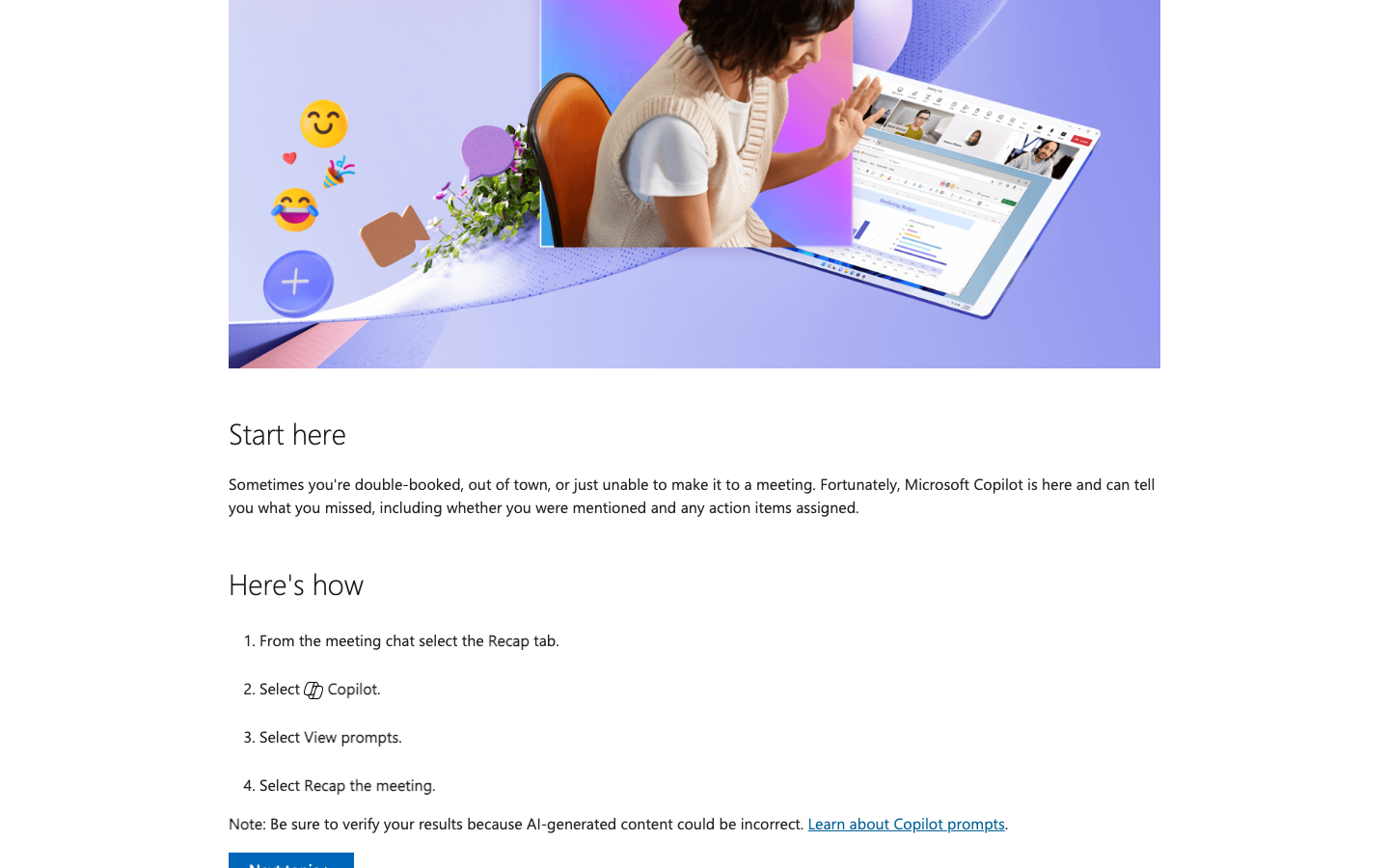
Microsoft's recap page says Copilot can tell you what you missed, including whether you were mentioned and which action items were assigned — and then tells you to verify the results, because AI-generated content could be incorrect.
What none of them decides is fields 1, 2 and 8. Attendance in particular is where generated drafts go wrong most quietly: speaker labels come from the transcript, and Microsoft's transcription documentation notes that speaker attribution and timestamps are what the saved transcript provides — so anyone dialling in on a shared line, or speaking from another person's laptop, will be attributed to the wrong name unless someone corrects it.
Filling the template from a Teams or Meet recap
The mechanics differ slightly by platform, and both need one thing set before the meeting rather than after.
Microsoft Teams. Open the meeting chat, select the Recap tab, select Copilot, select View prompts, then Recap the meeting. Paste the decisions and action items into fields 5 and 6, then read them against the transcript rather than from memory. Microsoft's note on that page is explicit about verifying the output.
Google Meet. The notes document is generated shortly after the meeting ends and saved in the meeting organiser's Drive, inside the "Google Meet" folder, in a sub-folder for that meeting. It is automatically attached to the Calendar event, and who can open it is decided by the sharing settings chosen when note-taking started — Google notes that notes are shared only with individuals added to the calendar invite, and that a group email does not by itself grant access. Google also records that the notes document follows the Meet retention policy your organisation has configured.
In both cases the draft arrives structured but unowned. Fields 1, 2 and 8 are still empty, and they are the ones a reader will check first.
A worked example
Meeting identity — Weekly delivery review. 27 August 2026, 10:00–10:35. Meeting room 2, Petaling Jaya. Chaired by the operations lead.
Attendance — Present: operations lead, project manager, two engineers. Apologies: finance manager. The client success lead joined at 10:12, after item 1.
Item 1 — Revised delivery date
- *Discussion:* The integration slipped by nine days because a third-party API change required rework. The project manager proposed 14 October. The engineers confirmed the rework is scoped but not yet started.
- *Decision:* Approved the revised delivery date of 14 October.
- *Actions:* Project manager to reissue the schedule to the client by 29 August. Lead engineer to confirm the rework estimate by 1 September.
- *Follow-up:* Whether the API change affects the reporting module — lead engineer to confirm at the next meeting.
Approval — Drafted from the meeting recording by the project manager. Checked against the transcript by the operations lead on 28 August 2026.
Notice how little of that is prose. Minutes that read like an article get skimmed; minutes that read like a list get used.
Sources: [1]
The review step that turns a draft into a record
One person, one pass, before it is sent. Compare six things against the transcript or recording rather than against your memory of the meeting: names, figures, dates, decisions, action owners and deadlines. Those six are where a generated draft is most often confidently wrong.
Memora's guide places the review after upload completes — open Meetings, check the audio, transcript, summary, action items and decisions — and notes that email is only sent when you enable it, so distribution is a deliberate step rather than an automatic one.
Then fill field 8 and stop editing. A minute that keeps changing after approval is not a record.
If you want the wider view of what can and cannot be automated across platforms, see How AI Can Automate Your Meeting Minutes.
Which template field comes from where
| Template field | What the AI tools produce, per their own documentation | What a person still has to do |
|---|---|---|
| 1. Meeting identity | Platform metadata: date, times and the meeting title from the calendar entry | Confirm the chair and the real location, which no tool records |
| 2. Attendance | Speaker labels derived from the transcript; Microsoft's saved transcript carries timestamps and speaker attribution | Correct shared lines, guests on someone else's device and late joiners |
| 4. Discussion summary | Google produces notes organised in Google Docs and a "Summary so far"; Microsoft's Copilot summarises what you missed | Cut it to the points that matter and remove anything not said |
| 5. Decisions | Memora's review screen lists decisions alongside the transcript and summary | Rewrite each as a completed statement, or record that nothing was decided |
| 6. Action items | Microsoft's recap reports action items assigned; Google's recap email includes suggested next steps | Assign a named owner and a real due date |
| 8. Approval | Not produced by any of them | Name the checker and the date; this is what makes it the record |
Before you circulate the minute
- Meeting title, date, start and end time, location or platform, and the chair are filled in
- Attendance lists present, apologies and anyone who joined partway
- Every agenda item has a discussion summary of three to six lines
- Every decision is written as a completed statement, or explicitly recorded as no decision
- Every action has one named owner, not a team, and a real due date
- Names, figures, dates, decisions, owners and deadlines have been checked against the transcript or recording
- Speaker attribution has been corrected for shared devices and guest lines
- Open questions are captured with someone assigned to answer them
- The approval line names who drafted it, who checked it and the date
- Distribution is a deliberate step, and the recipient list has been checked
FAQ
Can I let the AI write the whole minute?
It can draft the discussion summary, decisions and action items, which is most of the typing. It cannot approve the result. Google states that a "Take notes for me" summary can be incomplete, inaccurate or not generated, and Microsoft's recap page tells users to verify results because AI-generated content could be incorrect. Keep the approval field and name a person in it.
Which field goes wrong most often in a generated draft?
Attendance and attribution. Speaker labels come from the transcript — Microsoft's documentation notes the saved transcript provides timestamps and speaker attribution — so a shared conference line, a guest speaking from a colleague's laptop, or a late joiner will be mislabelled unless someone corrects it. Check that before the decisions.
Where do the generated notes end up, and who can read them?
It depends on the platform. Google saves the notes document in the meeting organiser's Drive in a "Google Meet" folder, attaches it to the Calendar event, and grants access according to the sharing settings chosen when note-taking started — a group email on the invite does not by itself give the group members access. Memora keeps the draft in the meeting record and only sends email when you enable it. Confirm the recipient list before you distribute.
How long should minutes be kept?
Long enough for the obligation that applies to your entity, which is a question for your own jurisdiction. As a concrete reference point, the UK Companies Act 2006 section 248 requires minutes of directors' meetings to be recorded and kept for at least ten years from the date of the meeting. Separately, Google notes that meeting notes documents follow whatever Meet retention policy your organisation has configured — so the tool's default retention and your record-keeping requirement are two different settings.
Key takeaways
- Eight fields are enough: identity, attendance, agenda item, discussion, decisions, actions, follow-ups and approval.
- AI tools reliably draft the discussion summary, decisions and action items — the middle of the template.
- Meeting identity, attendance accuracy and approval stay with a person on every platform.
- Speaker attribution comes from the transcript, so shared lines and guest devices need manual correction.
- Both Microsoft and Google tell users to verify generated output before relying on it.
- The approval line is what turns a circulated draft into a record.
Sources and image provenance
- How to Use Memora — Memora. Checked 1 September 2026 (HTTP 200). Primary source.Evidence used: Memora's public staff guide describes the review screen holding the audio, transcript, summary, action items and decisions, places review after upload completion, and states that email is sent only when the user enables it.
- "Take notes for me" in Google Meet — Google Meet Help. Checked 1 September 2026 (HTTP 200). Primary source.Evidence used: Google documents notes organised in Google Docs, the "Summary so far" catch-up, the organiser recap email containing a summary and suggested next steps, storage in the organiser's Drive "Google Meet" folder, Calendar attachment, sharing-settings access rules, the retention policy note and the warning that a summary can be incomplete, inaccurate or not generated.
- Recap a Teams meeting — Microsoft Support. Checked 1 September 2026 (HTTP 200). Primary source.Evidence used: Microsoft describes the Recap tab steps, states that Copilot can report what you missed including whether you were mentioned and which action items were assigned, and instructs users to verify results because AI-generated content could be incorrect.
- Admins - Manage transcription and captions for Teams meetings — Microsoft Learn. Checked 1 September 2026 (HTTP 200). Primary source.Evidence used: Microsoft states that participants can view the transcript after the meeting with timestamps and speaker attribution, and that live captions are not saved.
- Companies Act 2006, section 248: Minutes of directors' meetings — legislation.gov.uk (The National Archives). Checked 1 September 2026 (HTTP 200). Primary source.Evidence used: Section 248 requires every company to cause minutes of all proceedings at meetings of its directors to be recorded and to keep those records for at least ten years from the date of the meeting.
Image provenance
- First-party product-page screenshot: Memora — captured 1 September 2026 via Playwright browser screenshot of the resolved source URL at 1440x900. First-party screenshot of Memora's own public staff guide. Depicted content: Memora / Utopia Ventures. Review: Machine-verified in browser on 1 September 2026; own-product page. SHA-256:
4537013e579ea66547582e7a2fdb0e9b9c9c200421bb8e00b4d0c1cf427dae33 - Editorial screenshot: Google Meet Help — captured 1 September 2026 via Playwright browser screenshot of the resolved source URL at 1440x900. Limited editorial screenshot of an official public help page for source identification and commentary. Depicted content: Google LLC. Review: Machine-verified in browser on 1 September 2026; no content owned by Memora or Utopia is depicted. SHA-256:
4ee00dcd5a4f23039d0f071a4422003b921e0b5449976e5b9e69829e646fec7a - Editorial screenshot: Microsoft Support — captured 1 September 2026 via Playwright browser screenshot of the resolved source URL at 1440x900. Limited editorial screenshot of an official public support page for source identification and commentary. Depicted content: Microsoft Corporation. Review: Machine-verified in browser on 1 September 2026; illustration shown is Microsoft's own page artwork, not a Memora record. SHA-256:
bd1e07d619fefb2fadae69a8d6333fee040aaba9cb963f1969d969fe750e65b6